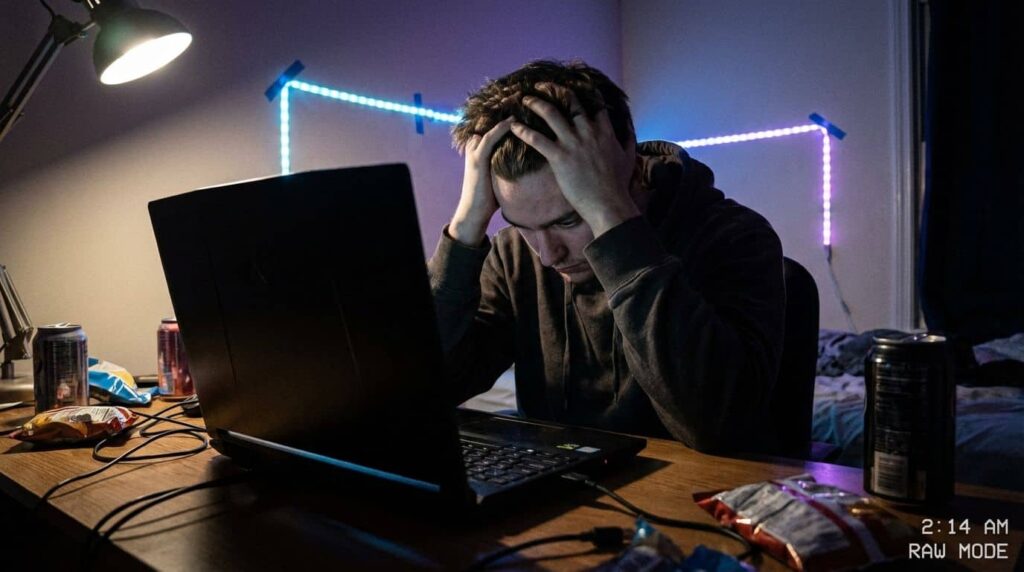
You’ve probably experienced that heart-stopping moment when your gaming laptop suddenly powers down mid-game, leaving you stranded in the digital battlefield. With most high-performance laptops barely lasting four hours on a single charge, it’s crucial to learn how to extend your gaming laptop battery life. Luckily, you don’t have to throw in the towel just yet. In this article, I’ll share effective tips and tricks to help you get the most out of your battery, utilizing smart power settings and a few lesser-known hacks that manufacturers often overlook. So, grab a snack, and let’s dive into optimizing your gaming experience!
Essential Tips for Maximizing Battery Life on Your Gaming Laptop
Why Adjusting Screen Brightness Matters
Did you know that simply lowering your screen brightness can significantly enhance your laptop’s battery performance? A display that shines at full brightness consumes a lot of power. By dimming it to around 50%, you can potentially boost your battery life by up to 30%. It’s an easy adjustment that makes a noticeable difference, especially during long gaming sessions.
The Importance of Refresh Rate
Moreover, don’t underestimate the impact of your refresh rate. Gaming laptops often come with high refresh rates like 144Hz. However, when running on battery, switching to 60Hz can lead to a battery life extension of about 15-20%. This small change can mean the difference between finishing a match and scrambling for a charger.
Utilizing Battery Saver Mode Effectively
Activating the Battery Saver mode is like putting your laptop in energy conservation mode. This feature dims your screen, limits background activity, and throttles CPU performance, allowing you to stretch your battery life. You can find this option by clicking on the battery icon in your taskbar. It’s best to turn it on proactively if you anticipate being away from a power source for an extended period.
Managing Background Applications
Background applications can be stealthy battery drains. They sit quietly, consuming resources while you’re focused on gaming. To reclaim that lost energy, open your Task Manager and check which apps are hogging power. Consider closing:
Should You Disable Wi-Fi and Bluetooth?
If you’re playing offline or working on a document, enabling Airplane Mode can save power. Although maintaining a Bluetooth connection or searching for Wi-Fi networks may seem trivial, they can slowly drain your battery. Additionally, consider turning off RGB lighting on your keyboard, as it can significantly impact power consumption.
Optimizing Gaming and Graphics Settings
When gaming on battery, you must adjust your expectations. Running graphics-intensive games at high settings will quickly deplete your battery. Instead, focus on efficiency:
How Graphics Settings Influence Battery Life
Lowering graphics settings reduces the load on your GPU, which not only conserves battery life but also minimizes heat production. This, in turn, can help your fans run quieter and more efficiently.
Using Integrated Graphics
Don’t forget, your laptop likely has both a dedicated GPU and integrated graphics. For everyday tasks, use the integrated chip. This switch can greatly enhance battery longevity. Most laptops have built-in options for toggling between these graphics processors, so take advantage of them.
Maintaining Your Laptop’s Hardware
It’s not just about software tweaks; keeping your laptop clean is equally crucial. Dust accumulation can lead to overheating, forcing your fans to work harder, which drains your battery. A quick clean-up every couple of months with compressed air can help maintain optimal performance.
The 80% Charge Rule
To prolong your battery’s lifespan, consider setting a charge limit. Many modern laptops allow you to cap charging at 60% or 80%. This practice can prevent unnecessary stress on your battery and extend its longevity over time.
Leveraging Updates for Better Battery Performance
Regularly updating your drivers is essential for maintaining battery efficiency. New updates often contain fixes that can help your hardware operate more smoothly and conserve energy. While manufacturer tools can be helpful, some may be bloated and adversely affect battery life.
A Hidden Gem: G-Helper for ASUS Users
If you own an ASUS laptop, consider using G-Helper. This open-source tool is lightweight and can replace heavier software, offering a better balance of features without draining your resources.
Future of Gaming Laptop Battery Performance
Looking ahead, advancements in technology are set to revolutionize battery performance in gaming laptops. Expect to see more devices focusing on efficiency through AI-driven optimizations. Innovations like NVIDIA Battery Boost 2.0 are paving the way for a future where laptops can last longer without being tethered to a wall socket.
By implementing these tips and tricks, you can enhance your gaming experience and ensure your laptop is ready for action whenever you are.