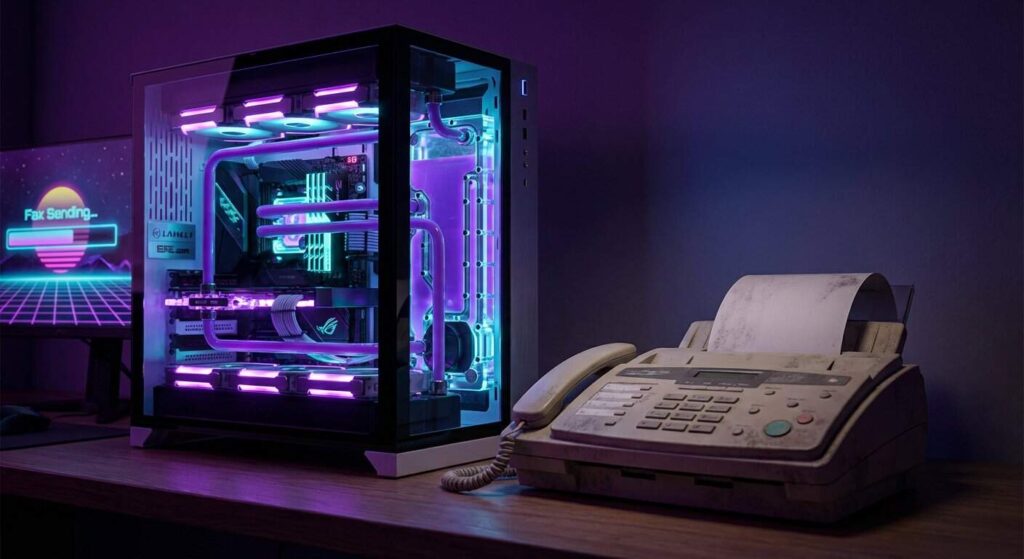
In today’s digital age, it might seem hard to believe that many organizations still rely on faxing for official communications. From landlords to healthcare providers, the need to send and receive faxes can catch you off guard, especially if you own a powerful gaming PC but lack a traditional fax machine. It’s frustrating, right? While the world moves toward digital solutions, faxing remains entrenched in various sectors due to security concerns and regulatory requirements. Fortunately, you don’t need to invest in outdated technology to meet these demands.
This article will guide you through the process of sending a fax directly from your gaming PC, all at no cost. You’ll learn how to digitize your documents, add your signature, and transmit everything seamlessly from your desk. So, are you ready to tackle that fax request without breaking a sweat?
Understanding the Ongoing Need for Faxing
Despite its outdated reputation, faxing is still an essential tool in sectors like healthcare and legal services. Many organizations trust faxing for secure document transmission, often citing compliance with regulations like HIPAA. Even though digital alternatives are emerging, the reliability of faxing remains a go-to option for many.
The Tools You’ll Need to Send a Fax From Your Gaming PC
Before diving into the faxing process, let’s gather what you’ll need:
Getting these tools ready will streamline your faxing experience.
Your Step-by-Step Guide to Digital Faxing
Let’s break it down into three straightforward parts: digitizing your document, signing it, and finally sending it.
Part 1: Digitizing Your Documents
If your document is already digital, feel free to skip ahead. Otherwise, here’s how to create a flawless digital copy of your paper documents using your smartphone.
Your smartphone can be your best friend for scanning documents. Rather than snapping a quick photo, consider using apps designed for this purpose, such as Adobe Scan or Microsoft Office Lens. These applications enhance the image quality and ensure your documents look professional.
Here’s how to use them effectively:
Now you have a digital copy ready for the next step!
Part 2: Adding Your Digital Signature
Next, you may need to sign your document. Instead of the cumbersome print-sign-scan routine, you can easily add a digital signature directly to your PDF.
Adding a signature digitally not only saves time but also improves document security. Free tools like Adobe Acrobat Reader offer a straightforward way to do this.
Follow these simple steps:
With your document signed, you’re ready for the final step.
Part 3: Sending Your Fax Online for Free
Now that your signed PDF is ready, it’s time to send it. Forget about the costly fax machines; online fax services offer an efficient alternative.
The online fax market is booming, making it easier than ever to find a suitable service. Some platforms even offer free tiers or trials, perfect for occasional users.
When choosing a service, consider these factors:
For a reliable solution, consider using Fax.xyz. It provides a user-friendly interface and strong security features. Simply sign up, upload your signed PDF, enter the recipient’s fax number, and hit send. You’ll receive real-time notifications to confirm delivery.
Troubleshooting Common Issues
Even with a straightforward process, complications can arise. Here’s how to tackle common challenges:
If your fax fails to send, double-check the recipient’s number. Ensure you’ve included the area code and that the document format is supported.
Worried about uploading sensitive documents? Always use a service that prioritizes security like Fax.xyz, which is HIPAA compliant.
If the recipient reports an unreadable fax, it likely stems from the original scan quality. Rescan your document, ensuring proper lighting and focus to enhance readability.
By following these steps, you can confidently send faxes without the hassle of outdated technology. Your gaming PC can do more than just run your favorite games; it can also help you navigate the demands of modern communication.